


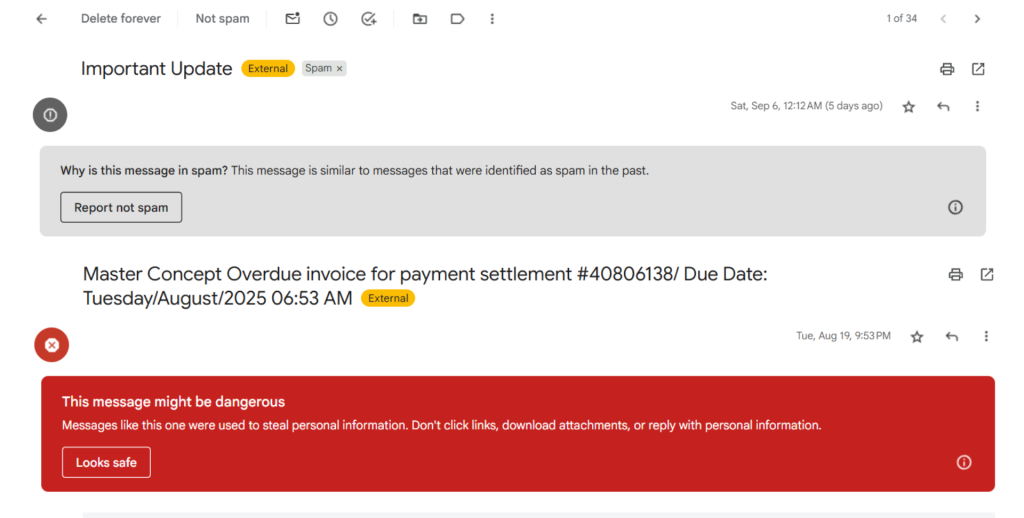
Phishing emails are one of the most common types of cyberattacks and pose a significant threat to corporate information security. Hackers often disguise themselves as internal company personnel or external partners, sending emails containing malicious links or attachments to trick employees into clicking them, thereby stealing sensitive data or damaging company systems. So, as Gmail administrators and users, how can we leverage the powerful features of Google Workspace to establish a multi-layered defense mechanism and effectively guard against phishing attacks?
Why Are Phishing Emails So Rampant?
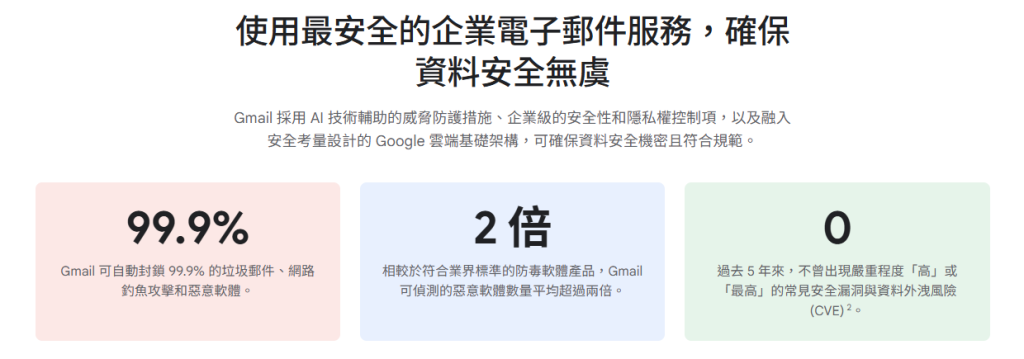
As the world’s most popular email service, Gmail processes a massive volume of emails every day. Although Google invests heavily in filtering spam and phishing emails, users may still receive them for the following reasons:
Constantly Evolving Attack Methods
- Hackers are continuously updating their attack tools and techniques, making phishing emails harder to detect.
- Hackers gather information about target users to tailor email content, increasing the attack’s success rate.
Insufficient User Security Awareness
- Some users lack basic information security knowledge and judgment, making them susceptible to mistakenly clicking on malicious links or attachments.
- Reusing weak passwords or the same password also increases the risk of account compromise.
How Can Businesses Prevent Phishing Emails?
We will approach this from the perspectives of both Gmail administrators and Gmail users, providing solutions to prevent phishing emails and create a more secure corporate email environment through the enterprise-grade Google Workspace.
Authentication Mechanisms for Gmail Administrators
To help prevent email spoofing, phishing, and spam, Google strongly recommends that all email senders set up both DKIM and SPF. Both authentication mechanisms send a stronger signal that the email was written and sent by you, which is crucial for preventing phishing attacks and other email security risks. If you purchase your domain from Master Concept, you do not need to set up DKIM and SPF separately.
1. Set Up Email Authentication Mechanisms
- DKIM (DomainKeys Identified Mail): DKIM uses a key-based encryption method to ensure that the content of an email is not tampered with during transmission and protects your domain from being spoofed.
- SPF (Sender Policy Framework): SPF is a framework that verifies whether the sender (Mail From) is sending from an authorized IP address (Sender IP address). This helps prevent sender identity forgery or the sending of phishing emails impersonating your company.
2. Block Specific Sources
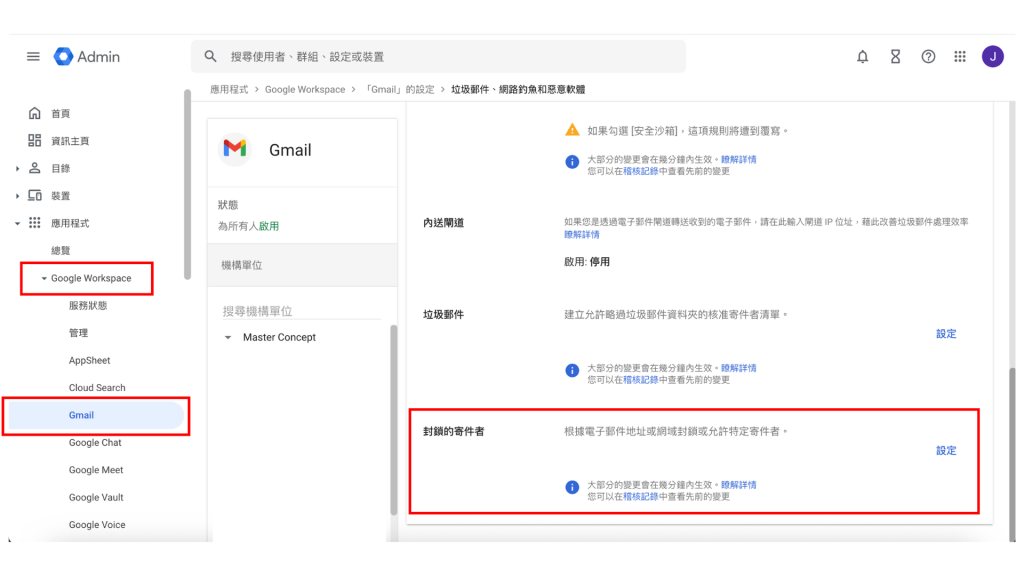
Administrators can block emails from specific email addresses or domains directly in the Google Workspace Admin console under “Blocked senders” to prevent malicious emails from continuously entering the enterprise.
3. Enable Advanced Gmail Security Features
Also in the Gmail settings within the Google Workspace Admin console, administrators can enable various settings under “Spoofing and authentication” to enhance email filtering.
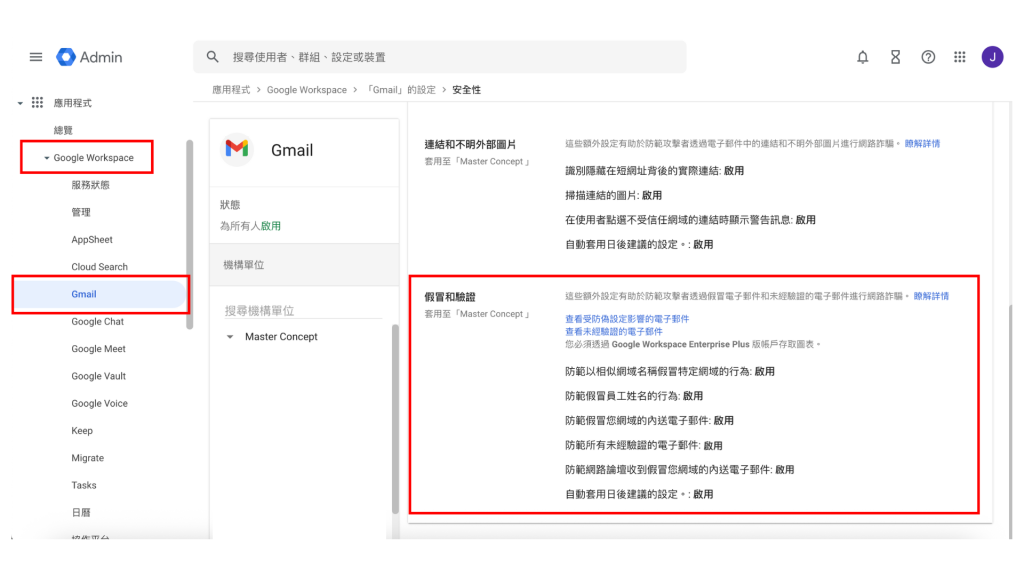
The authentication mentioned here refers to SPF or DKIM. By default, Gmail will keep emails that fail authentication in the inbox and display a warning.
Self-Protection for Gmail Users
1. User Vigilance
Be vigilant about emails, messages, websites, or pop-up windows from unknown or untrustworthy sources. Do not casually click on links, download files, or enter personal information. Never provide sensitive information such as account passwords, national ID numbers, or bank account details. If the content of an email seems overly urgent or too good to be true, be sure to verify it through multiple channels to avoid being deceived.
2. Block Specific Email Addresses
You can directly block the sender from within the email itself. Click the “More” icon (three dots) next to the “Reply” icon in the upper-right corner of the message, and then select “Block [Sender Name]”.

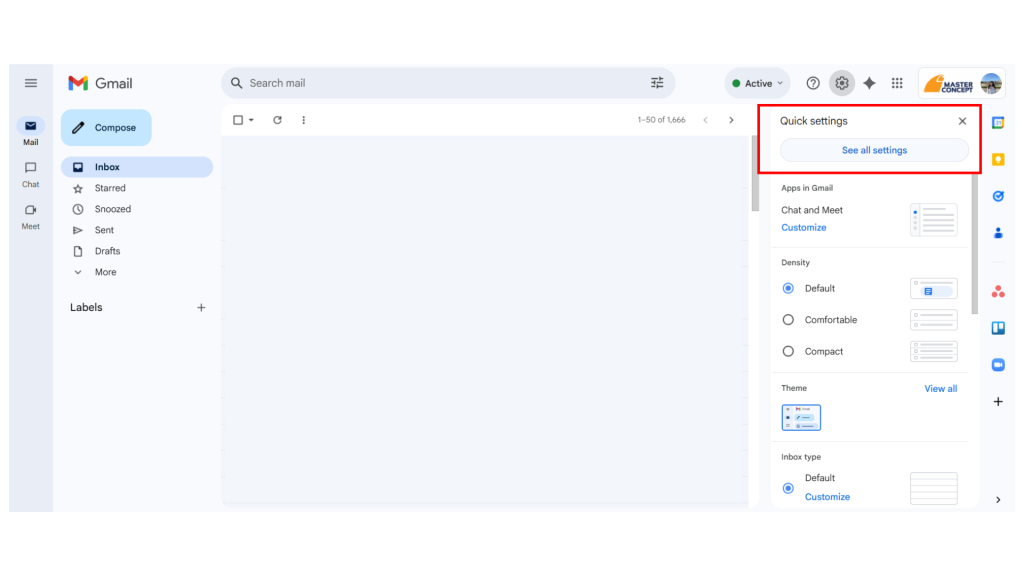
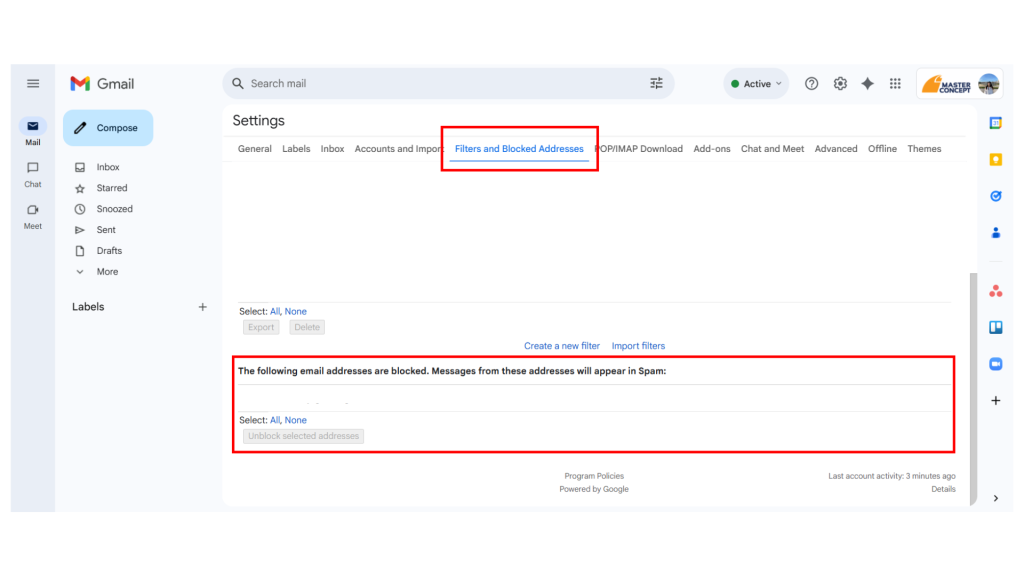
To view your complete list of blocked senders, click “Settings” in the upper-right corner of Gmail → click “See all settings” in the sidebar → click the “Filters and Blocked Addresses” tab at the top. At the bottom, you will see the list of currently blocked senders, and you can “unblock selected addresses” at any time.
Master Concept Combats Phishing Attacks With You
Phishing email attacks are a major challenge for corporate information security. As a Gmail administrator, you can effectively reduce risks by using the security features of Google Workspace, combined with employee security awareness training. However, email security is not a one-time task but an ongoing effort that requires continuous learning and improvement. Only with full participation and a collective defense can we build a safe and reliable email environment, providing strong protection for corporate domain security.
As a Google Cloud Premier Partner, Master Concept has helped numerous enterprises implement Google Workspace and strengthen their email security through best practices. Want to learn how to use Google Workspace to build a more secure corporate email environment? Contact us today to discuss the best solution for your business!



![[Free Webinar] Road to COP17: Unifying Enterprise Data with Planetary-Scale Geospatial AI](https://masterconcept.ai/wp-content/uploads/2026/09/Webinar-261007-Unifying-Enterprise-Data-with-Planetary-Scale-Geospatial-AI-_1280x720px-scaled.png)