


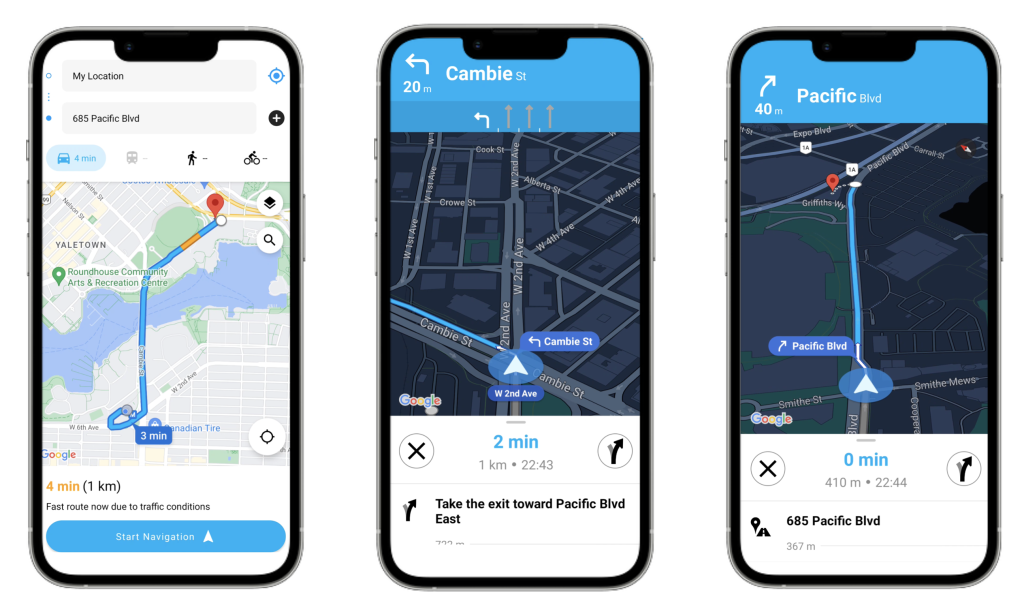
In this blog post, I’ll walk you through how to integrate turn-by-turn navigation into an Android app using the Google Navigation SDK. The app will let users enter an address, view the fastest route on a map, and press a button to receive 3D turn-by-turn directions to their destination.
Why should you use the Google Navigation SDK?
The Google Navigation SDK is an all-in-one solution for building a navigation experience in your car or in your mobile application. It allows developers to recreate the in-app navigation experience from the consumer Google Maps app by providing step-by-step driving, walking, or cycling directions in real-time. Users can follow a route with minimal effort, and the route displayed adjusts automatically if a user misses a turn or takes a different path.
Crucially, the Navigation SDK allows developers to not only adjust the general look and feel of the in-app navigation screen but also control the position and visibility of major UI elements. This enables companies to deliver a customized turn-by-turn navigation experience that seamlessly aligns with their brand and integrates smoothly with their business operations.
What types of companies should use in-app turn-by-turn navigation?
Any company that needs to efficiently transport people or goods can benefit from using the Navigation SDK. However, businesses in the following three industries will find it particularly helpful:
Ride-Hailing and Delivery Services (e.g. Uber, Lyft, DoorDash, Postmates)
- In-app navigation helps drivers find the fastest routes to pick up and drop off passengers or deliveries, improving efficiency and customer satisfaction.
Logistics and Fleet Management (e.g. FedEx, UPS, DHL)
- Turn-by-turn navigation enables drivers to follow optimized routes, reducing delivery times, fuel costs, and improving overall fleet management.
Field Services (e.g. AT&T, Verizon, Compass Group)
- If a job gets canceled, or a new urgent request comes in, field technicians can be rerouted instantly without needing manual intervention, allowing for better scheduling and resource allocation.
How do you use the Navigation SDK?
Adding the Navigation SDK to an Android app is relatively straightforward. First, enable the Google Maps Navigation SDK in your Google Cloud Platform (GCP) project and create an API key.
Second, in your Android Studio project, add the Navigation SDK dependency in your build.gradle file like so:
dependencies {
    implementation 'com.google.android.libraries.navigation:core:1.x.x'
}
Ensure you have Google Play Services and Maps SDK enabled by listing it as a dependency in the build.gradle file.
dependencies { implementation 'com.google.android.gms:play-services-maps:18.x.x' implementation 'com.google.android.gms:play-services-location:21.x.x'}Lastly, add the API key retrieved in the first step to your AndroidManifest.xml file.<meta-data android:name="com.google.android.geo.API_KEY" android:value="YOUR_API_KEY"/>From here, running the Navigation SDK is simply of importing the required libraries e.g.
import com.google.android.libraries.navigation.NavigationApi
import com.google.android.libraries.navigation.Navigator
import com.google.android.libraries.places.api.model.Place
And calling the startGuidance() method when you want to launch the turn-by-turn navigation:
private var mNavigator = SuspendRef<Navigator>()
val place: Place = Place.builder()
    .setName("685 Pacific Blvd")
    .setAddress("Vancouver, BC, Canada")
    .setLatLng(LatLng(37.8199, -122.4783))
    .build()

val navigator = mNavigator.await()
        val waypoint = getWayPoint(place)
        val pendingRoute = navigator.setDestination(
            waypoint,
            RoutingOptions()
                .travelMode(TravelMode.DRIVING),
            DisplayOptions()
                .showStopSigns(true)
                .showTrafficLights(true)
        )
navigator.startGuidance()
How much does the Google Navigation SDK cost?
The Google Navigation SDK follows a pay-as-you-go pricing model, similar to other Google Maps Platform services. If you are dealing with high usage volumes, you can work with Google or a partner for volume discounts. Please contact [email protected] for details.
Conclusion
In this blog post, we explored the features of the Google Navigation SDK, discussed pricing, and demonstrated how to integrate it into your app. If you have any questions about the Navigation SDK or suggestions for topics related to the Google Maps API that you’d like us to cover, feel free to reach out to us at [email protected].




![[Free Webinar] Road to COP17: Unifying Enterprise Data with Planetary-Scale Geospatial AI](https://masterconcept.ai/wp-content/uploads/2026/09/Webinar-261007-Unifying-Enterprise-Data-with-Planetary-Scale-Geospatial-AI-_1280x720px-scaled.png)