


Losing work due to accidental deletions or unwanted changes can be a nightmare. Thankfully, Google Drive has your back with its powerful version history feature. This allows you to easily revert to previous versions of your files, effectively acting as a safety net for your valuable data. This article will guide you through the process of restoring previous Google Drive file versions, answering common questions and offering helpful tips along the way.
Step-by-step to restore version history in Google Drive
1. Open the file on Google Drive you want to restore, there are two ways to open the version history. The first way: Click “File” > “Version history” > “See version history”.

2. The second way: Click the “Last modified” icon in the upper right corner next to the comment icon.

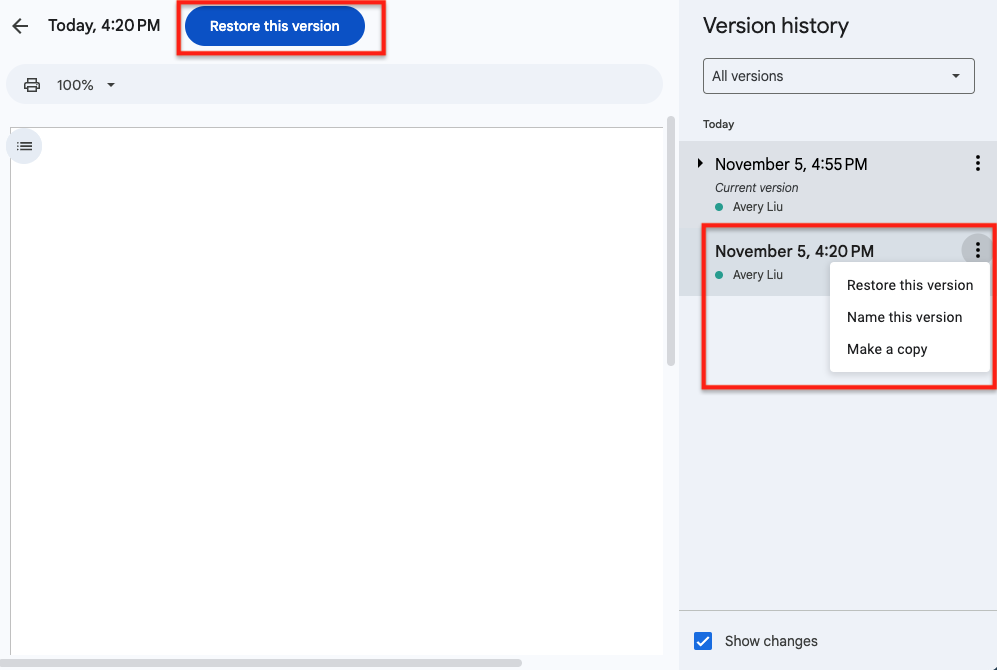
3. After opening the version history, you can view the modification records in each version, and find out who changed the file at what time, and what the changes were.

4. Select the version you want to, or copy an earlier version of the file, and also name versions so can you figure out the version you need immediately.
Restore Version History FAQs
1. What type of file on Google Drive can restore previous file history?
Google Docs, Sheets, and Slides.
2. How many versions of a file does Google Drive store?
Google Drive stores up to 100 revisions or the last 30 days of changes, whichever is greater. For Google Docs, Sheets, and Slides, it can store every version.
3. Can I restore a deleted file after emptying the Trash?
Unfortunately, files deleted from the Trash are typically permanently removed.
If you are a Google Workspace administrator, you can recover deleted items from Google Drive within 25 days after a user empties their trash. After that period, Google purges those items from its systems and they can’t be recovered. Depending on the amount of data that you want to restore, it might take several days for the data to reappear in the user’s account. If you have any questions, welcome to contact us.
4. Can I see who made changes to a file in the version history?
Yes, the version history often shows the user who made the changes and the timestamp.
Conclusion
Google Drive’s version history is a valuable feature that can save you from data loss and frustration. By understanding how to use and manage version history effectively, you can safeguard your important files and collaborate more confidently. Contact us today to learn more about optimizing your Google Workspace experience and protecting your valuable data.
Know more about Google Workspace
Learn How To Reclaim Your Google Workspace Domain
Everything You Need to Know About Google Gemini





![[Free Webinar] Road to COP17: Unifying Enterprise Data with Planetary-Scale Geospatial AI](https://masterconcept.ai/wp-content/uploads/2026/09/Webinar-261007-Unifying-Enterprise-Data-with-Planetary-Scale-Geospatial-AI-_1280x720px-scaled.png)